

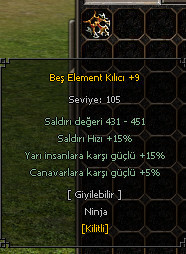
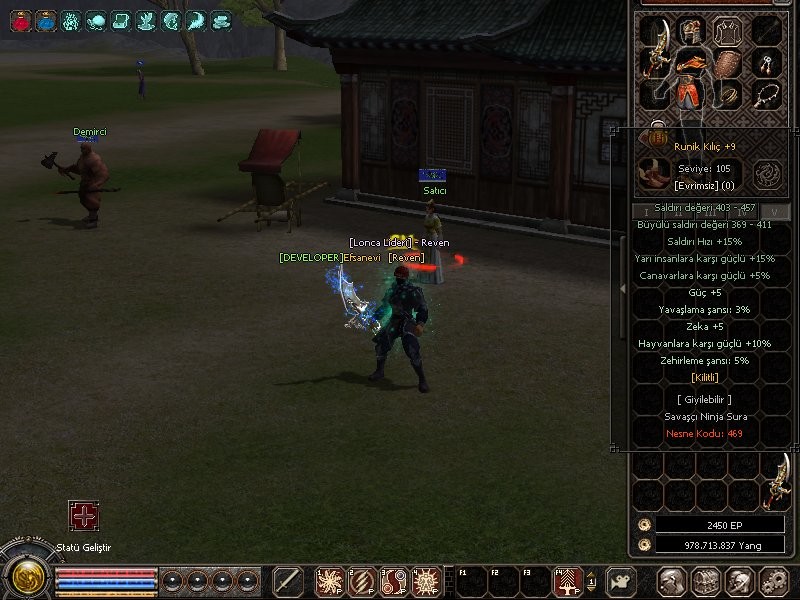
Benim gibi takıntılı arkadaşlar varsa onlar için uygundur.Düzeltme amacı [Kilitli] yazısı taşların altında kalıyor ve görüntü kirliliği yaratıyordu, şimdi efsunların altında sade ve hoş duruyor.
root > uitooltip.py aç ve eski eklediğin [Kilitli] kodunu sil
eski kodlar bunlar (sistemde ki anlatımda olan);
arat:
altına bir boşluk bırakıp ekle;
eski hali;
yeni hali;
PY Item Kilit Sisteminde [Kilitli] Yazısının Yerini Değiştirme Rehberi
Metin2 Özel Sunucularında PY Item Lock Sistemi Nedir?
Metin2 özel sunucu geliştiricileri için PY Item Lock sistemi, oyuncuların eşyalarını koruma altına alabilmeleri amacıyla geliştirilmiş önemli bir özelliktir. Bu sistem sayesinde oyuncular belirli eşyalarını kilitleyebilir ve başkaları tarafından kullanımını engelleyebilir. Bu sayede item kayıplarını azaltmak mümkün olur. Ancak bu sistemin kullanıcı dostu olması için bazı görsel değişiklikler yapmak da istenebilir. Özellikle Kilitli yazısının konumu veya görünümü estetik açıdan değiştirilmek istenebilir.
PY Item Lock Sisteminde [Kilitli] Yazısı Nerede Görünür?
PY Item Lock sistemi genellikle UI Script (uiscript) dosyaları üzerinden çalışır. Oyuncu bir eşyayı kilitlediğinde, eşya slotunda küçük bir etiket olarak Kilitli yazısı belirir. Bu yazı genellikle eşyanın sol üst köşesinde ya da sağ alt köşesinde yer alır. Bu etiketin konumunu değiştirmek istiyorsanız, ilgili UI script dosyasını düzenlemeniz gerekir.
PY UI Script Dosyasında Yer Değiştirme Adımları
Öncelikle root dizininde bulunan uiscript klasörüne gidin. Burada item lock sistemine ait olan script dosyasını bulun. Genellikle bu dosya inventorywindow.py gibi bir isimle tanımlanır. Bu dosyada lock_text veya benzeri bir nesne üzerinde konum ayarlaması yapılır.
örnek kod:
Yukarıdaki örnekte SetPosition fonksiyonu ile X ve Y koordinatları değiştirilerek yazının konumu ayarlanabilir. Bu koordinatlar eşya slotuna göre göreli olarak belirlenir. Örneğin, yazının eşyanın ortasında gözükmesi istenirse X ve Y değerleri buna göre hesaplanmalıdır.
Python GUI ile Eşya Slotunda Yer Değiştirme
Metin2 PY sistemlerinde GUI (Graphical User Interface) ile oluşturulan arayüzler oldukça esnektir. Eşya slotu üzerine yazıyı yerleştirmek için ui.py dosyasındaki AttachObject veya benzeri bir yöntemle yazının eşya slotuna göre konumlandırılması sağlanabilir. Bu sayede yazının konumu dinamik olarak ayarlanabilir.
UYARI: Bu tür değişiklikler sırasında dikkatli olunmalıdır. Yanlış bir koordinat değeri yazının ekranda gözükmemesine neden olabilir. Test aşamasında farklı çözünürlüklerde deneme yapılması önerilir.
Kilitli Yazısının Renk ve Yazı Tipini Değiştirme
Sadece konum değil, aynı zamanda yazının rengi ve fontu da değiştirilebilir. Bu işlem için SetTextOutline veya SetColor gibi fonksiyonlar kullanılabilir. Örneğin kırmızı renkli bir yazı ile kilitli olduğunu daha belirgin hale getirebilirsiniz.
örnek kod:
Sonuç
PY Item Lock sistemine ait Kilitli yazısının konumunu değiştirmek, kullanıcı deneyimi açısından oldukça faydalıdır. Oyuncuların daha kolay fark edebileceği bir konuma getirilmesi, sistemin daha kullanışlı hale gelmesini sağlar. Bu işlem için uiscript ve py root dosyalarında gerekli değişikliklerin yapılması yeterlidir.
Changing the Position of [Locked] Text in PY Item Lock System
What is PY Item Lock System in Metin2 Private Servers?
The PY Item Lock system is an important feature developed for Metin2 private server developers, allowing players to protect their items by locking them. This way, players can prevent others from using specific items, reducing item losses. However, for this system to be user-friendly, certain visual adjustments might be necessary. For instance, you may want to change the position or appearance of the Locked label on the item slot.
Where Does the [Locked] Text Appear in PY Item Lock System?
The PY Item Lock system typically works through UI Script (uiscript) files. When a player locks an item, a small label saying Locked appears on the item slot. Usually, this text appears at the top-left or bottom-right corner of the item. To adjust its location, you need to modify the corresponding UI script file.
Steps for Changing the Position in PY UI Script File
First, navigate to the uiscript folder located in your root directory. Find the script file related to the item lock system. Usually, this file is named something like inventorywindow.py. In this file, there will be a location setting on an object such as lock_text.
example code:
In the example above, the SetPosition function allows adjusting the X and Y coordinates to change where the text appears. These coordinates are relative to the item slot. For example, if you want the text to appear in the center of the item, the X and Y values must be adjusted accordingly.
Changing Location in Item Slot with Python GUI
GUIs created in Metin2 PY systems are quite flexible. You can position the text over the item slot by using methods such as AttachObject found in ui.py. This allows the text's position to be set dynamically according to the item slot.
WARNING: Be careful during these modifications. Incorrect coordinate values can cause the text not to appear on screen. Testing on different resolutions is recommended.
Changing Color and Font of the Locked Text
Not only the position but also the color and font of the text can be modified. Functions like SetTextOutline or SetColor can be used for this purpose. For example, using red-colored text makes the locked status more visible.
example code:
Conclusion
Adjusting the position of the Locked text in the PY Item Lock system is highly beneficial in terms of user experience. Making the text appear in a more noticeable spot helps players identify locked items easily. This can be achieved by making necessary changes in the uiscript and py root files.
root > uitooltip.py aç ve eski eklediğin [Kilitli] kodunu sil
eski kodlar bunlar (sistemde ki anlatımda olan);
Ziyaretçiler için gizlenmiş link,görmek için üye olmalısınız!
Giriş yap veya üye ol.
arat:
Kod:
self.AppendTextLine(affectString, affectColor)altına bir boşluk bırakıp ekle;
Ziyaretçiler için gizlenmiş link,görmek için üye olmalısınız!
Giriş yap veya üye ol.
eski hali;
yeni hali;
PY Item Kilit Sisteminde [Kilitli] Yazısının Yerini Değiştirme Rehberi
Metin2 Özel Sunucularında PY Item Lock Sistemi Nedir?
Metin2 özel sunucu geliştiricileri için PY Item Lock sistemi, oyuncuların eşyalarını koruma altına alabilmeleri amacıyla geliştirilmiş önemli bir özelliktir. Bu sistem sayesinde oyuncular belirli eşyalarını kilitleyebilir ve başkaları tarafından kullanımını engelleyebilir. Bu sayede item kayıplarını azaltmak mümkün olur. Ancak bu sistemin kullanıcı dostu olması için bazı görsel değişiklikler yapmak da istenebilir. Özellikle Kilitli yazısının konumu veya görünümü estetik açıdan değiştirilmek istenebilir.
PY Item Lock Sisteminde [Kilitli] Yazısı Nerede Görünür?
PY Item Lock sistemi genellikle UI Script (uiscript) dosyaları üzerinden çalışır. Oyuncu bir eşyayı kilitlediğinde, eşya slotunda küçük bir etiket olarak Kilitli yazısı belirir. Bu yazı genellikle eşyanın sol üst köşesinde ya da sağ alt köşesinde yer alır. Bu etiketin konumunu değiştirmek istiyorsanız, ilgili UI script dosyasını düzenlemeniz gerekir.
PY UI Script Dosyasında Yer Değiştirme Adımları
Öncelikle root dizininde bulunan uiscript klasörüne gidin. Burada item lock sistemine ait olan script dosyasını bulun. Genellikle bu dosya inventorywindow.py gibi bir isimle tanımlanır. Bu dosyada lock_text veya benzeri bir nesne üzerinde konum ayarlaması yapılır.
örnek kod:
Kod:
lockText = ui.TextLine()[BR][/BR]lockText.SetText('Kilitli')[BR][/BR]lockText.SetPosition(10, 10)Yukarıdaki örnekte SetPosition fonksiyonu ile X ve Y koordinatları değiştirilerek yazının konumu ayarlanabilir. Bu koordinatlar eşya slotuna göre göreli olarak belirlenir. Örneğin, yazının eşyanın ortasında gözükmesi istenirse X ve Y değerleri buna göre hesaplanmalıdır.
Python GUI ile Eşya Slotunda Yer Değiştirme
Metin2 PY sistemlerinde GUI (Graphical User Interface) ile oluşturulan arayüzler oldukça esnektir. Eşya slotu üzerine yazıyı yerleştirmek için ui.py dosyasındaki AttachObject veya benzeri bir yöntemle yazının eşya slotuna göre konumlandırılması sağlanabilir. Bu sayede yazının konumu dinamik olarak ayarlanabilir.
UYARI: Bu tür değişiklikler sırasında dikkatli olunmalıdır. Yanlış bir koordinat değeri yazının ekranda gözükmemesine neden olabilir. Test aşamasında farklı çözünürlüklerde deneme yapılması önerilir.
Kilitli Yazısının Renk ve Yazı Tipini Değiştirme
Sadece konum değil, aynı zamanda yazının rengi ve fontu da değiştirilebilir. Bu işlem için SetTextOutline veya SetColor gibi fonksiyonlar kullanılabilir. Örneğin kırmızı renkli bir yazı ile kilitli olduğunu daha belirgin hale getirebilirsiniz.
örnek kod:
Kod:
lockText.SetFontName('Tahoma')[BR][/BR]lockText.SetPackedColor(0xffFF0000)Sonuç
PY Item Lock sistemine ait Kilitli yazısının konumunu değiştirmek, kullanıcı deneyimi açısından oldukça faydalıdır. Oyuncuların daha kolay fark edebileceği bir konuma getirilmesi, sistemin daha kullanışlı hale gelmesini sağlar. Bu işlem için uiscript ve py root dosyalarında gerekli değişikliklerin yapılması yeterlidir.
Changing the Position of [Locked] Text in PY Item Lock System
What is PY Item Lock System in Metin2 Private Servers?
The PY Item Lock system is an important feature developed for Metin2 private server developers, allowing players to protect their items by locking them. This way, players can prevent others from using specific items, reducing item losses. However, for this system to be user-friendly, certain visual adjustments might be necessary. For instance, you may want to change the position or appearance of the Locked label on the item slot.
Where Does the [Locked] Text Appear in PY Item Lock System?
The PY Item Lock system typically works through UI Script (uiscript) files. When a player locks an item, a small label saying Locked appears on the item slot. Usually, this text appears at the top-left or bottom-right corner of the item. To adjust its location, you need to modify the corresponding UI script file.
Steps for Changing the Position in PY UI Script File
First, navigate to the uiscript folder located in your root directory. Find the script file related to the item lock system. Usually, this file is named something like inventorywindow.py. In this file, there will be a location setting on an object such as lock_text.
example code:
Kod:
lockText = ui.TextLine()[BR][/BR]lockText.SetText('Locked')[BR][/BR]lockText.SetPosition(10, 10)In the example above, the SetPosition function allows adjusting the X and Y coordinates to change where the text appears. These coordinates are relative to the item slot. For example, if you want the text to appear in the center of the item, the X and Y values must be adjusted accordingly.
Changing Location in Item Slot with Python GUI
GUIs created in Metin2 PY systems are quite flexible. You can position the text over the item slot by using methods such as AttachObject found in ui.py. This allows the text's position to be set dynamically according to the item slot.
WARNING: Be careful during these modifications. Incorrect coordinate values can cause the text not to appear on screen. Testing on different resolutions is recommended.
Changing Color and Font of the Locked Text
Not only the position but also the color and font of the text can be modified. Functions like SetTextOutline or SetColor can be used for this purpose. For example, using red-colored text makes the locked status more visible.
example code:
Kod:
lockText.SetFontName('Tahoma')[BR][/BR]lockText.SetPackedColor(0xffFF0000)Conclusion
Adjusting the position of the Locked text in the PY Item Lock system is highly beneficial in terms of user experience. Making the text appear in a more noticeable spot helps players identify locked items easily. This can be achieved by making necessary changes in the uiscript and py root files.
