

Normalde bu sistem ekli ama açılması için iki küçük ayar yapılması gerekiyor.
Açılır: root/game.py
Aratılır:
Değiştirilir:
Aratılır:
Altına eklenir:
K tuşuna basarak konsolu açabilirsiniz.
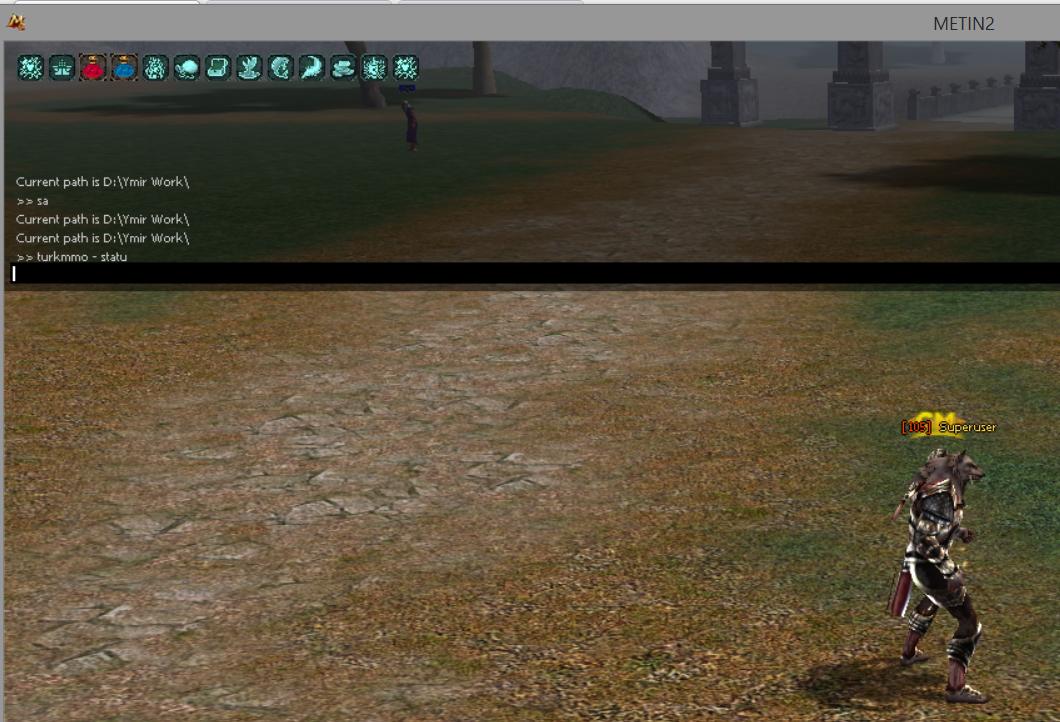
Metin2 Lobby olarak Metin2 private server geliştirme sürecinde, özellikle Python tabanlı sistemler üzerinde çalışırken konsol arayüzüne erişim oldukça önemli olabilir. Bu yazıda, Python ile geliştirilen sistemlerde nasıl konsol penceresi açılır ve bu pencerenin kontrolü nasıl sağlanır, detaylıca ele alınacaktır. Bu bilgi, hem py root hem de uiscript[/COORD] yapılarında kullanışlı olacaktır.
Konsol Nedir ve Neden Gerekli?
Konsol, programın çıktısını, hata mesajlarını ve debug bilgilerini görüntülememizi sağlayan bir terminal arayüzüdür. Özellikle Python ile geliştirilen Metin2 sistemlerinde, sunucu tarafında çalışan game veya auth süreçlerinde hata ayıklamak için konsol açmak hayati önem taşır.
Python ile Konsol Penceresi Açma Yöntemleri
Python ile bir uygulama çalıştırdığınızda, bu uygulamanın varsayılan olarak bir konsol penceresi açması gerekmez. Özellikle Py GUI gibi grafiksel arayüzlerde çalışırken konsol görünmez olabilir. Ancak bazı durumlarda, özellikle Metin2 server geliştirme sürecinde debug bilgilerini takip etmek isteyebilirsiniz. Bu durumda konsolu manuel olarak açmak gerekir.
1. Python Script Dosyasını .pyw Uzantısı Yerine .py Olarak Çalıştırmak
Metin2 geliştirme sırasında oluşturduğunuz Python dosyaları genellikle .pyw uzantılıdır çünkü bu, Windows'ta konsol penceresinin açılmasını engeller. Ancak debug yapmak istiyorsanız, uzantıyı .py olarak değiştirmek yeterlidir. Böylece komut satırı penceresi otomatik olarak açılacaktır.
2. subprocess Modülü ile Konsol Açma
Eğer scriptinizi farklı bir ortamda başlatıyor ve konsol penceresini açmak istiyorsanız subprocess modülünü kullanabilirsiniz. Örneğin:
Bu kod, yeni bir konsol penceresinde main.py dosyasını çalıştıracaktır. Bu yöntem özellikle Metin2 sistemlerinde server src debug işlemleri için idealdir.
3. ctypes ile Windows API Kullanımı
Windows işletim sistemi üzerinde, doğrudan sistem çağrıları ile konsol penceresi açabilirsiniz. Bunun için ctypes kütüphanesini kullanabilirsiniz:
Bu satır, çalışan program için yeni bir konsol penceresi oluşturur. Özellikle uiscript veya başka bir GUI tabanlı sistem üzerinde debug yaparken oldukça faydalıdır.
Python ile Metin2 Sunucu Debug İşlemleri
Metin2 sunucularında Python tarafında geliştirilen sistemlerde hata ayıklama işlemi genellikle log dosyaları üzerinden yapılır. Ancak, konsol penceresi açık olduğunda, anlık hata mesajlarını ve sistem durumunu daha hızlı takip edebilirsiniz. Özellikle game server programming ve auth server süreçlerinde bu oldukça işe yarar.
Konsol Üzerinden Loglama ve Hata Ayıklama
Python'da standart olarak print() fonksiyonu ile ekrana çıktı alabilirsiniz. Bu çıktılar, konsol açık olduğu sürece görünecektir. Ayrıca logging modülünü kullanarak daha gelişmiş loglama işlemleri gerçekleştirebilirsiniz:
Sonuç
Metin2 özel sunucularında Python tabanlı sistemler geliştirmek isteyenler için konsol erişimi büyük önem taşır. Hem debug işlemleri hem de sistem durumu izleme açısından konsol penceresi açmak, geliştirme sürecini hızlandırır. Bu yazıda bahsedilen yöntemlerle, kendi server src projelerinizde kolayca konsol erişimi sağlayabilirsiniz.
Metin2 Lobby as Metin2 private server development process, especially while working on Python-based systems, accessing console interface can be quite important. In this article, how to open console window in Python-based systems and how to control this window will be explained in detail. This information will be useful both in py root and uiscript structures.
What is Console and Why is it Needed?
Console is a terminal interface that allows us to view program output, error messages, and debug information. Especially in Python-based Metin2 systems, opening console is vital for debugging server-side processes like game or auth.
Methods of Opening Console Window with Python
When you run an application with Python, it does not necessarily open a console window by default. Especially when working with graphical interfaces such as Py GUI, the console may remain hidden. However, sometimes during Metin2 server development, you may want to track debug information. In such cases, it becomes necessary to manually open the console.
1. Running Python Script File as .py Instead of .pyw
During Metin2 development, your Python files are usually .pyw extensions because this prevents command line window from opening in Windows. However, if you want to debug, changing extension to .py is sufficient. Thus, command line window will automatically open.
2. Opening Console with subprocess Module
If you start your script in a different environment and wish to open a console window, you can use the subprocess module. For example:
This code runs main.py in a new console window. This method is ideal for Metin2 systems during server src debug operations.
3. Using Windows API with ctypes
On Windows operating system, you can directly open console window via system calls. For this purpose, you can use the ctypes library:
This line creates a new console window for the running program. It is especially useful when debugging on GUI-based systems like uiscript.
Debugging Operations on Metin2 Server with Python
Debugging processes on Python-based systems developed in Metin2 servers are generally done through log files. However, when the console window is open, you can follow real-time error messages and system status more quickly. This is especially useful during game server programming and auth server processes.
Logging and Debugging via Console
In Python, you can output to screen using standard print() function. These outputs will appear as long as the console is open. Additionally, you can perform advanced logging operations using the logging module:
Conclusion
Console access is crucial for those who want to develop Python-based systems in Metin2 private servers. Console window opening accelerates the development process both for debugging operations and system status monitoring. With methods mentioned in this article, you can easily provide console access in your own server src projects.
Açılır: root/game.py
Aratılır:
Kod:
self.consoleEnable = FALSEDeğiştirilir:
Kod:
self.consoleEnable = TRUEAratılır:
Kod:
onPressKeyDict[app.DIK_L] = lambda : self.interface.ToggleChatLogWindow()Altına eklenir:
Kod:
onPressKeyDict[app.DIK_[K] = lambda : self.ShowConsole()K tuşuna basarak konsolu açabilirsiniz.
[Python] Konsol Sistemini Açma
Metin2 Lobby olarak Metin2 private server geliştirme sürecinde, özellikle Python tabanlı sistemler üzerinde çalışırken konsol arayüzüne erişim oldukça önemli olabilir. Bu yazıda, Python ile geliştirilen sistemlerde nasıl konsol penceresi açılır ve bu pencerenin kontrolü nasıl sağlanır, detaylıca ele alınacaktır. Bu bilgi, hem py root hem de uiscript[/COORD] yapılarında kullanışlı olacaktır.
Konsol Nedir ve Neden Gerekli?
Konsol, programın çıktısını, hata mesajlarını ve debug bilgilerini görüntülememizi sağlayan bir terminal arayüzüdür. Özellikle Python ile geliştirilen Metin2 sistemlerinde, sunucu tarafında çalışan game veya auth süreçlerinde hata ayıklamak için konsol açmak hayati önem taşır.
Python ile Konsol Penceresi Açma Yöntemleri
Python ile bir uygulama çalıştırdığınızda, bu uygulamanın varsayılan olarak bir konsol penceresi açması gerekmez. Özellikle Py GUI gibi grafiksel arayüzlerde çalışırken konsol görünmez olabilir. Ancak bazı durumlarda, özellikle Metin2 server geliştirme sürecinde debug bilgilerini takip etmek isteyebilirsiniz. Bu durumda konsolu manuel olarak açmak gerekir.
1. Python Script Dosyasını .pyw Uzantısı Yerine .py Olarak Çalıştırmak
Metin2 geliştirme sırasında oluşturduğunuz Python dosyaları genellikle .pyw uzantılıdır çünkü bu, Windows'ta konsol penceresinin açılmasını engeller. Ancak debug yapmak istiyorsanız, uzantıyı .py olarak değiştirmek yeterlidir. Böylece komut satırı penceresi otomatik olarak açılacaktır.
2. subprocess Modülü ile Konsol Açma
Eğer scriptinizi farklı bir ortamda başlatıyor ve konsol penceresini açmak istiyorsanız subprocess modülünü kullanabilirsiniz. Örneğin:
Kod:
[COLOR=#9365b8][B]import subprocess[/B][/COLOR][BR][/BR][COLOR=#9365b8][B]subprocess.Popen(['python', 'main.py'], creationflags=subprocess.CREATE_NEW_CONSOLE)[/B][/COLOR]Bu kod, yeni bir konsol penceresinde main.py dosyasını çalıştıracaktır. Bu yöntem özellikle Metin2 sistemlerinde server src debug işlemleri için idealdir.
3. ctypes ile Windows API Kullanımı
Windows işletim sistemi üzerinde, doğrudan sistem çağrıları ile konsol penceresi açabilirsiniz. Bunun için ctypes kütüphanesini kullanabilirsiniz:
Kod:
[COLOR=#9365b8][B]import ctypes[/B][/COLOR][BR][/BR][COLOR=#9365b8][B]ctypes.windll.kernel32.AllocConsole()[/B][/COLOR]Bu satır, çalışan program için yeni bir konsol penceresi oluşturur. Özellikle uiscript veya başka bir GUI tabanlı sistem üzerinde debug yaparken oldukça faydalıdır.
Python ile Metin2 Sunucu Debug İşlemleri
Metin2 sunucularında Python tarafında geliştirilen sistemlerde hata ayıklama işlemi genellikle log dosyaları üzerinden yapılır. Ancak, konsol penceresi açık olduğunda, anlık hata mesajlarını ve sistem durumunu daha hızlı takip edebilirsiniz. Özellikle game server programming ve auth server süreçlerinde bu oldukça işe yarar.
Konsol Üzerinden Loglama ve Hata Ayıklama
Python'da standart olarak print() fonksiyonu ile ekrana çıktı alabilirsiniz. Bu çıktılar, konsol açık olduğu sürece görünecektir. Ayrıca logging modülünü kullanarak daha gelişmiş loglama işlemleri gerçekleştirebilirsiniz:
Kod:
[COLOR=#9365b8][B]import logging[/B][/COLOR][BR][/BR][COLOR=#9365b8][B]logging.basicConfig(level=logging.DEBUG)[/B][/COLOR][BR][/BR][COLOR=#9365b8][B]logging.debug('Debug mesaji')[/B][/COLOR]Sonuç
Metin2 özel sunucularında Python tabanlı sistemler geliştirmek isteyenler için konsol erişimi büyük önem taşır. Hem debug işlemleri hem de sistem durumu izleme açısından konsol penceresi açmak, geliştirme sürecini hızlandırır. Bu yazıda bahsedilen yöntemlerle, kendi server src projelerinizde kolayca konsol erişimi sağlayabilirsiniz.
[Python] Opening Console System
Metin2 Lobby as Metin2 private server development process, especially while working on Python-based systems, accessing console interface can be quite important. In this article, how to open console window in Python-based systems and how to control this window will be explained in detail. This information will be useful both in py root and uiscript structures.
What is Console and Why is it Needed?
Console is a terminal interface that allows us to view program output, error messages, and debug information. Especially in Python-based Metin2 systems, opening console is vital for debugging server-side processes like game or auth.
Methods of Opening Console Window with Python
When you run an application with Python, it does not necessarily open a console window by default. Especially when working with graphical interfaces such as Py GUI, the console may remain hidden. However, sometimes during Metin2 server development, you may want to track debug information. In such cases, it becomes necessary to manually open the console.
1. Running Python Script File as .py Instead of .pyw
During Metin2 development, your Python files are usually .pyw extensions because this prevents command line window from opening in Windows. However, if you want to debug, changing extension to .py is sufficient. Thus, command line window will automatically open.
2. Opening Console with subprocess Module
If you start your script in a different environment and wish to open a console window, you can use the subprocess module. For example:
Kod:
[COLOR=#9365b8][B]import subprocess[/B][/COLOR][BR][/BR][COLOR=#9365b8][B]subprocess.Popen(['python', 'main.py'], creationflags=subprocess.CREATE_NEW_CONSOLE)[/B][/COLOR]This code runs main.py in a new console window. This method is ideal for Metin2 systems during server src debug operations.
3. Using Windows API with ctypes
On Windows operating system, you can directly open console window via system calls. For this purpose, you can use the ctypes library:
Kod:
[COLOR=#9365b8][B]import ctypes[/B][/COLOR][BR][/BR][COLOR=#9365b8][B]ctypes.windll.kernel32.AllocConsole()[/B][/COLOR]This line creates a new console window for the running program. It is especially useful when debugging on GUI-based systems like uiscript.
Debugging Operations on Metin2 Server with Python
Debugging processes on Python-based systems developed in Metin2 servers are generally done through log files. However, when the console window is open, you can follow real-time error messages and system status more quickly. This is especially useful during game server programming and auth server processes.
Logging and Debugging via Console
In Python, you can output to screen using standard print() function. These outputs will appear as long as the console is open. Additionally, you can perform advanced logging operations using the logging module:
Kod:
[COLOR=#9365b8][B]import logging[/B][/COLOR][BR][/BR][COLOR=#9365b8][B]logging.basicConfig(level=logging.DEBUG)[/B][/COLOR][BR][/BR][COLOR=#9365b8][B]logging.debug('Debug message')[/B][/COLOR]Conclusion
Console access is crucial for those who want to develop Python-based systems in Metin2 private servers. Console window opening accelerates the development process both for debugging operations and system status monitoring. With methods mentioned in this article, you can easily provide console access in your own server src projects.
