

Uzun zaman aradım hiç bi yerde bulamadım nedense genelde /b komutunu /n ye çevirmeyi gösteriyorlar bu kadar basit bi çözümü varmış.
Faydalı olması dileğiyle iyi forumlar.
Faydalı olması dileğiyle iyi forumlar.
uitip.py aç ve arat
Kod:
class TipBoard(ui.Bar):Altındaki yazıları komple değiştir kod bloğunun sonuna kadar.
Kod:
class TipBoard(ui.Bar): SCROLL_WAIT_TIME = 5.0 TIP_DURATION = 10.0 FONT_WIDTH = 18 FONT_HEIGHT = 18 LINE_WIDTH = 500 LINE_HEIGHT = FONT_HEIGHT + 5 STEP_HEIGHT = LINE_HEIGHT * 2 LINE_CHANGE_LIMIT_WIDTH = 350 FRAME_IMAGE_FILE_NAME_LIST = [ "season1/interface/oxevent/frame_0.sub", "season1/interface/oxevent/frame_1.sub", "season1/interface/oxevent/frame_2.sub", ] FRAME_IMAGE_STEP = 256 FRAME_BASE_X = -20 FRAME_BASE_Y = -12 def __init__(self): ui.Bar.__init__(self) self.AddFlag("not_pick") self.tipList = [] self.curPos = 0 self.dstPos = 0 self.nextScrollTime = 0 self.SetPosition(0, 150) self.SetSize(512, 55) self.SetColor(grp.GenerateColor(0.0, 0.0, 0.0, 0.5)) self.SetWindowHorizontalAlignCenter() self.__CreateTextBar() self.__LoadFrameImages() def __LoadFrameImages(self): x = self.FRAME_BASE_X y = self.FRAME_BASE_Y self.imgList = [] for imgFileName in self.FRAME_IMAGE_FILE_NAME_LIST: self.imgList.append(self.__LoadImage(x, y, imgFileName)) x += self.FRAME_IMAGE_STEP def __LoadImage(self, x, y, fileName): img = ui.ImageBox() img.SetParent(self) img.AddFlag("not_pick") img.LoadImage(fileName) img.SetPosition(x, y) img.Show() return img def __del__(self): ui.Bar.__del__(self) def __CreateTextBar(self): x, y = self.GetGlobalPosition() self.textBar = BigTextBar(self.LINE_WIDTH, 300, self.FONT_HEIGHT) self.textBar.SetParent(self) self.textBar.SetPosition(6, 8) self.textBar.SetTextColor(242, 231, 193) self.textBar.SetClipRect(0, y+8, wndMgr.GetScreenWidth(), y+8+self.STEP_HEIGHT) self.textBar.Show() def __CleanOldTip(self): curTime = app.GetTime() leaveList = [] for madeTime, text in self.tipList: if curTime + self.TIP_DURATION <= madeTime: leaveList.append(text) self.tipList = leaveList if not leaveList: self.textBar.ClearBar() self.Hide() return self.__RefreshBoard() def __RefreshBoard(self): self.textBar.ClearBar() if len(self.tipList) == 1: checkTime, text = self.tipList[0] (text_width, text_height) = self.textBar.GetTextExtent(text) self.textBar.TextOut((500-text_width)/2, (self.STEP_HEIGHT-8-text_height)/2, text) else: index = 0 for checkTime, text in self.tipList: (text_width, text_height) = self.textBar.GetTextExtent(text) self.textBar.TextOut((500-text_width)/2, index*self.LINE_HEIGHT, text) index += 1 def SetTip(self, text): if not app.IsVisibleNotice(): return curTime = app.GetTime() self.__AppendText(curTime, text) self.__RefreshBoard() self.nextScrollTime = curTime + 1.0 if not self.IsShow(): self.curPos = -self.STEP_HEIGHT self.dstPos = -self.STEP_HEIGHT self.textBar.SetPosition(3, 8 - self.curPos) self.Show() def __AppendText(self, curTime, text): import dbg prevPos = 0 while 1: curPos = text.find(" ", prevPos) if curPos < 0: break (text_width, text_height) = self.textBar.GetTextExtent(text[:curPos]) if text_width > self.LINE_CHANGE_LIMIT_WIDTH: self.tipList.append((curTime, text[:prevPos])) self.tipList.append((curTime, text[prevPos:])) return prevPos = curPos + 1 self.tipList.append((curTime, text)) def OnUpdate(self): if not self.tipList: self.Hide() return if app.GetTime() > self.nextScrollTime: self.nextScrollTime = app.GetTime() + self.SCROLL_WAIT_TIME self.dstPos = self.curPos + self.STEP_HEIGHT if self.dstPos > self.curPos: self.curPos += 1 self.textBar.SetPosition(3, 8 - self.curPos) if self.curPos > len(self.tipList)*self.LINE_HEIGHT: self.curPos = -self.STEP_HEIGHT self.dstPos = -self.STEP_HEIGHT self.__CleanOldTip()KANIT
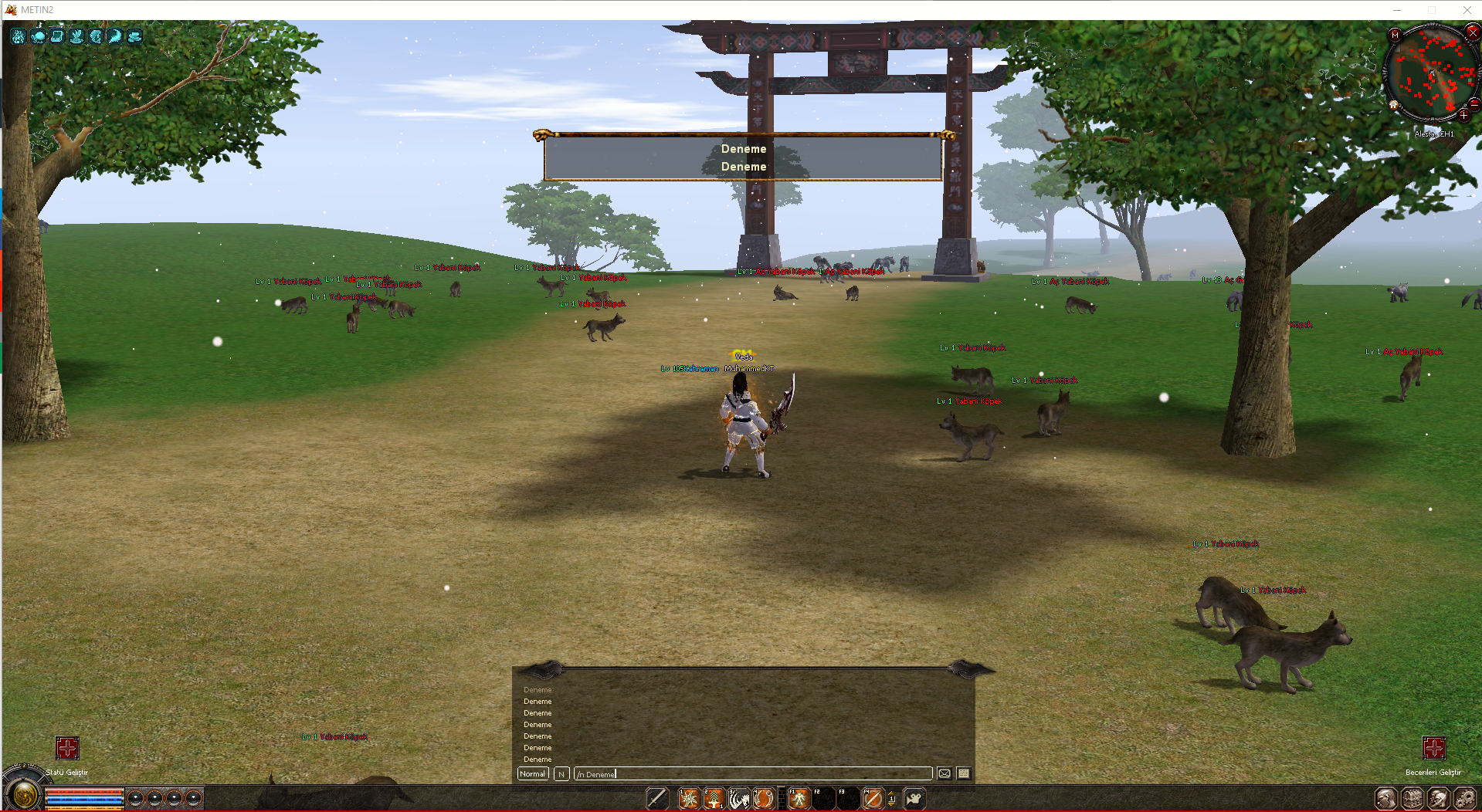
Giriş
Metin2 özel sunucularında geliştirme yaparken, kullanıcı deneyimini artırmak için farklı yollar aramak kaçınılmazdır. Özellikle kullanıcıya gösterilen mesajlar, bilgilendirmeler ve bildirimler oldukça önemlidir. Bu yazıda, Python dili ile yazılmış bir GUI (grafiksel arayüz) üzerinden NoticeBar kısmının nasıl çalıştığını ve bunu sanki /b komutu gibi kullanabileceğimizi anlatacağız. Bu sayede, oyun içi kullanıcıya mesaj gösterimi daha profesyonel hale getirilebilir.
NoticeBar Nedir?
NoticeBar, Metin2 oyununda ekranın üst kısmında yer alan, kırmızı renkte bir arka plana sahip küçük bir metin kutusudur. Genellikle sunucu duyuruları, olaylar veya önemli bilgiler için kullanılır. Standart olarak, bu bar sadece sunucu tarafından gönderilen mesajları gösterir ve oyun içi komutlarla doğrudan etkileşime girmez. Ancak Python tarafında yapılacak küçük bir düzenlemeyle bu durum değiştirilebilir.
Python ve Uiscript Kullanımı
Metin2 özel sunucularında UI sistemleri genellikle Python ile yazılmaktadır. uiscript.py, root klasöründe bulunan ve oyun içi arayüzlerin yapıldığı dosyalardan biridir. Burada, NoticeBar bileşeni tanımlanır ve oyun içine entegre edilir. Python ile yazılmış bu sistem, dinamik olarak mesaj alabilir ve kullanıcıya görsel olarak yansıtabilir.
Kodlama Adımları
1. İlk olarak, uiscript.py dosyasında NoticeBar bileşenini tanımlamalıyız. Bu bileşen genellikle bir Window veya Bar sınıfıyla tanımlanır.
2. Ardından, bu bileşene metin yazma ve gösterme fonksiyonunu eklemeliyiz. Bu işlem, genellikle bir SetText() metoduyla yapılır.
3. Daha sonra, oyun içi bir komut tanımlayıp, bu komutla NoticeBar'a mesaj yazdırmalıyız. Örneğin, /notice Merhaba Dünya komutu ile kullanıcıya bir bildirim gösterebiliriz.
Python Kod Örneği
Yukarıdaki kodda:
- OnPress() fonksiyonu, Enter tuşuna basıldığında çağrılır.
- editLine.GetText() ile komut satırı alınır.
- /notice komutu yakalanır ve geri kalan metin noticeBar'a gönderilir.
Faydaları
NoticeBar'ı bu şekilde kullanmak:
- Sunucu yöneticilerine oyun içi anons yapabilme imkanı sağlar.
- Oyunculara anlık bilgi verilebilmesini sağlar.
- Daha etkileyici bir kullanıcı arayüzü sunar.
Sonuç
Metin2 özel sunucu geliştirme sürecinde, kullanıcı dostu ve etkileyici sistemler oluşturmak büyük önem taşır. Python dili ile yazılmış GUI sistemleri sayesinde, NoticeBar gibi arayüz öğelerini daha da esnek hale getirebiliriz. Bu sayede hem oyun içi kullanıcı deneyimi artırılır hem de sunucu yönetiminde kolaylıklar sağlanır. Bu tarz küçük geliştirmeler, uzun vadede büyük farklar yaratır.
Introduction
While developing private Metin2 servers, enhancing user experience often requires exploring different approaches. Particularly important are messages, notifications, and announcements displayed to players. In this article, we will explain how the NoticeBar works through a Python-based GUI, and how to make it function similarly to the /b command. This allows in-game messages to be shown more professionally to users.
What is NoticeBar?
NoticeBar is a small text box located at the top of the screen in Metin2, usually with a red background. It is typically used for server announcements, events, or other important information. By default, this bar only displays messages sent from the server and does not interact directly with in-game commands. However, with minor adjustments in Python, this behavior can be changed.
Using Python and Uiscript
UI systems in Metin2 private servers are generally written in Python. The file uiscript.py, located in the root folder, is one of the files where in-game interfaces are built. Here, the NoticeBar component is defined and integrated into the game. This Python-based system can dynamically receive messages and visually display them to the user.
Coding Steps
1. First, define the NoticeBar component in the uiscript.py file. This component is usually defined using a Window or Bar class.
2. Then, add a function to write and display text on this component. This is typically done using a SetText() method.
3. Next, define an in-game command that writes a message to the NoticeBar. For example, use the command /notice Hello World to show a notification to the player.
Python Code Example
In the code above:
- OnPress() function is called when the Enter key is pressed.
- editLine.GetText() retrieves the command input.
- The /notice command is captured, and the remaining text is sent to noticeBar.
Benefits
Using NoticeBar in this way:
- Allows server administrators to make in-game announcements.
- Enables real-time information delivery to players.
- Offers a more engaging user interface.
Conclusion
In the process of developing Metin2 private servers, creating user-friendly and impressive systems is highly significant. Thanks to Python-based GUI systems, components like NoticeBar can become much more flexible. This approach enhances in-game user experience and simplifies server management. Such small improvements can lead to major differences over time.
Metin2'de Python Kullanarak NoticeBar Kısmını /b Komutu Gibi Ayarlamak
Giriş
Metin2 özel sunucularında geliştirme yaparken, kullanıcı deneyimini artırmak için farklı yollar aramak kaçınılmazdır. Özellikle kullanıcıya gösterilen mesajlar, bilgilendirmeler ve bildirimler oldukça önemlidir. Bu yazıda, Python dili ile yazılmış bir GUI (grafiksel arayüz) üzerinden NoticeBar kısmının nasıl çalıştığını ve bunu sanki /b komutu gibi kullanabileceğimizi anlatacağız. Bu sayede, oyun içi kullanıcıya mesaj gösterimi daha profesyonel hale getirilebilir.
NoticeBar Nedir?
NoticeBar, Metin2 oyununda ekranın üst kısmında yer alan, kırmızı renkte bir arka plana sahip küçük bir metin kutusudur. Genellikle sunucu duyuruları, olaylar veya önemli bilgiler için kullanılır. Standart olarak, bu bar sadece sunucu tarafından gönderilen mesajları gösterir ve oyun içi komutlarla doğrudan etkileşime girmez. Ancak Python tarafında yapılacak küçük bir düzenlemeyle bu durum değiştirilebilir.
Python ve Uiscript Kullanımı
Metin2 özel sunucularında UI sistemleri genellikle Python ile yazılmaktadır. uiscript.py, root klasöründe bulunan ve oyun içi arayüzlerin yapıldığı dosyalardan biridir. Burada, NoticeBar bileşeni tanımlanır ve oyun içine entegre edilir. Python ile yazılmış bu sistem, dinamik olarak mesaj alabilir ve kullanıcıya görsel olarak yansıtabilir.
Kodlama Adımları
1. İlk olarak, uiscript.py dosyasında NoticeBar bileşenini tanımlamalıyız. Bu bileşen genellikle bir Window veya Bar sınıfıyla tanımlanır.
2. Ardından, bu bileşene metin yazma ve gösterme fonksiyonunu eklemeliyiz. Bu işlem, genellikle bir SetText() metoduyla yapılır.
3. Daha sonra, oyun içi bir komut tanımlayıp, bu komutla NoticeBar'a mesaj yazdırmalıyız. Örneğin, /notice Merhaba Dünya komutu ile kullanıcıya bir bildirim gösterebiliriz.
Python Kod Örneği
Kod:
[B]def OnPress(self):[BR][/BR] if self.editLine.GetText()[:8] == '/notice ':[BR][/BR] notice_text = self.editLine.GetText()[8:][BR][/BR] self.noticeBar.SetText(notice_text)[BR][/BR] self.editLine.SetText('')[/B]Yukarıdaki kodda:
- OnPress() fonksiyonu, Enter tuşuna basıldığında çağrılır.
- editLine.GetText() ile komut satırı alınır.
- /notice komutu yakalanır ve geri kalan metin noticeBar'a gönderilir.
Faydaları
NoticeBar'ı bu şekilde kullanmak:
- Sunucu yöneticilerine oyun içi anons yapabilme imkanı sağlar.
- Oyunculara anlık bilgi verilebilmesini sağlar.
- Daha etkileyici bir kullanıcı arayüzü sunar.
Sonuç
Metin2 özel sunucu geliştirme sürecinde, kullanıcı dostu ve etkileyici sistemler oluşturmak büyük önem taşır. Python dili ile yazılmış GUI sistemleri sayesinde, NoticeBar gibi arayüz öğelerini daha da esnek hale getirebiliriz. Bu sayede hem oyun içi kullanıcı deneyimi artırılır hem de sunucu yönetiminde kolaylıklar sağlanır. Bu tarz küçük geliştirmeler, uzun vadede büyük farklar yaratır.
Using Python to Make NoticeBar Behave Like /b Command in Metin2
Introduction
While developing private Metin2 servers, enhancing user experience often requires exploring different approaches. Particularly important are messages, notifications, and announcements displayed to players. In this article, we will explain how the NoticeBar works through a Python-based GUI, and how to make it function similarly to the /b command. This allows in-game messages to be shown more professionally to users.
What is NoticeBar?
NoticeBar is a small text box located at the top of the screen in Metin2, usually with a red background. It is typically used for server announcements, events, or other important information. By default, this bar only displays messages sent from the server and does not interact directly with in-game commands. However, with minor adjustments in Python, this behavior can be changed.
Using Python and Uiscript
UI systems in Metin2 private servers are generally written in Python. The file uiscript.py, located in the root folder, is one of the files where in-game interfaces are built. Here, the NoticeBar component is defined and integrated into the game. This Python-based system can dynamically receive messages and visually display them to the user.
Coding Steps
1. First, define the NoticeBar component in the uiscript.py file. This component is usually defined using a Window or Bar class.
2. Then, add a function to write and display text on this component. This is typically done using a SetText() method.
3. Next, define an in-game command that writes a message to the NoticeBar. For example, use the command /notice Hello World to show a notification to the player.
Python Code Example
Kod:
[B]def OnPress(self):[BR][/BR] if self.editLine.GetText()[:8] == '/notice ':[BR][/BR] notice_text = self.editLine.GetText()[8:][BR][/BR] self.noticeBar.SetText(notice_text)[BR][/BR] self.editLine.SetText('')[/B]In the code above:
- OnPress() function is called when the Enter key is pressed.
- editLine.GetText() retrieves the command input.
- The /notice command is captured, and the remaining text is sent to noticeBar.
Benefits
Using NoticeBar in this way:
- Allows server administrators to make in-game announcements.
- Enables real-time information delivery to players.
- Offers a more engaging user interface.
Conclusion
In the process of developing Metin2 private servers, creating user-friendly and impressive systems is highly significant. Thanks to Python-based GUI systems, components like NoticeBar can become much more flexible. This approach enhances in-game user experience and simplifies server management. Such small improvements can lead to major differences over time.
