

Herkese Hayırlı Kullanımlar
Sistem Videoda Görüldügü Gibidir Açma Kapamalıdır
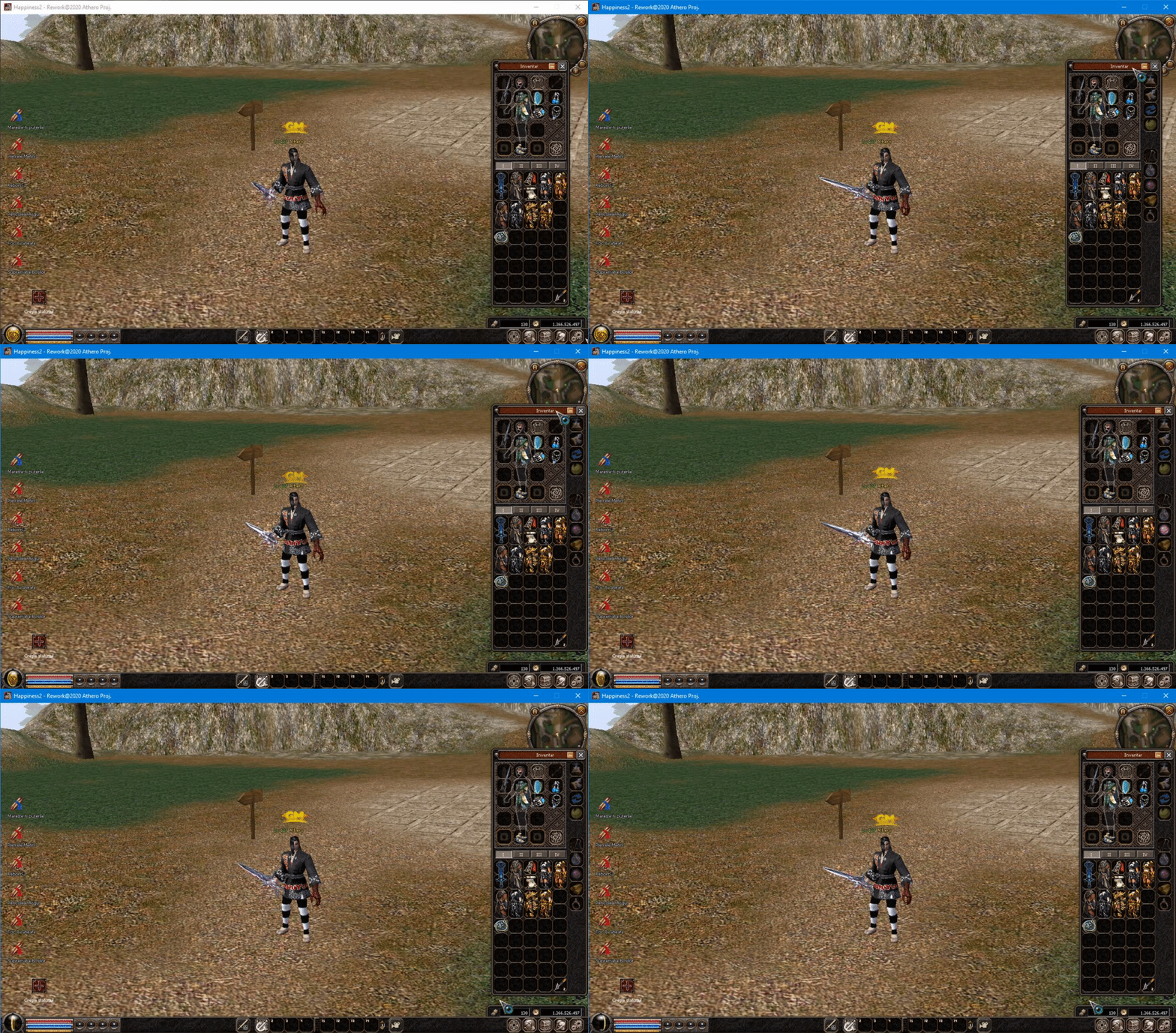
Sistem Videoda Görüldügü Gibidir Açma Kapamalıdır
Kod:
class InventoryWindow(ui.ScriptWindow): liHighlightedItems = [] USE_TYPE_TUPLE = ("USE_CLEAN_SOCKET", "USE_CHANGE_ATTRIBUTE", "USE_ADD_ATTRIBUTE", "USE_ADD_ATTRIBUTE2", "USE_ADD_ACCESSORY_SOCKET", "USE_PUT_INTO_ACCESSORY_SOCKET", "USE_PUT_INTO_BELT_SOCKET", "USE_PUT_INTO_RING_SOCKET") //adaugam sub MINIMIZE_INVENTORY = FALSE //cautam self.costumeButton = self.GetChild2("CostumeButton") //adauga sub self.ButonMinimize = self.GetChild2("MinimizeInventory") self.ButonMinimize.SetEvent(ui.__mem_func__(self.MinimizeInventory)) //sub ## Refresh self.SetInventoryPage(0) self.SetEquipmentPage(0) self.RefreshItemSlot() self.RefreshStatus() //adaugam def MinimizeInventory(self): if self.MINIMIZE_INVENTORY == FALSE: self.GetChild("board").SetSize(176,545) self.GetChild("TitleBar").SetWidth(160) self.GetChild("TitleName").SetPosition(77, 3) self.GetChild("MinimizeInventory").SetPosition(160 - 40, 4) self.SetSize(176, 545) self.SetPosition(wndMgr.GetScreenWidth() - 212 - 2, wndMgr.GetScreenHeight() - 37 - 587) self.MINIMIZE_INVENTORY = TRUE else: self.GetChild("board").SetSize(215,545) self.GetChild("TitleBar").SetWidth(160 + 40) self.GetChild("TitleName").SetPosition((170 + 55) / 2, 3) self.GetChild("MinimizeInventory").SetPosition(160 + 55 - 55, 4) self.SetSize(215, 545) self.SetPosition(wndMgr.GetScreenWidth() - 212 - 2, wndMgr.GetScreenHeight() - 37 - 587) self.MINIMIZE_INVENTORY = FALSE self.PageInventory(self.MINIMIZE_INVENTORY) def PageInventory(self, arg): if arg == TRUE: self.GetChild("background_1").Hide() self.GetChild("background_2").Hide() self.GetChild("ToggleSwitchbot").Hide() self.GetChild("BonusPage").Hide() self.GetChild("FastEquip").Hide() self.GetChild("OnWiki").Hide() self.GetChild("Button_Mantii").Hide() self.GetChild("Button_Exp").Hide() self.GetChild("Button_Poly").Hide() self.GetChild("Button_Yang").Hide() self.GetChild("Button_Warp").Hide() else: self.GetChild("background_1").Show() self.GetChild("background_2").Show() self.GetChild("ToggleSwitchbot").Show() self.GetChild("BonusPage").Show() self.GetChild("FastEquip").Show() self.GetChild("OnWiki").Show() self.GetChild("Button_Mantii").Show() self.GetChild("Button_Exp").Show() self.GetChild("Button_Poly").Show() self.GetChild("Button_Yang").Show() self.GetChild("Button_Warp").Show() ////inventory_window.py locale //deasupra la { "name":"TitleName", "type":"text", "x":77, "y":3, "text":uiScriptLocale.INVENTORY_TITLE, "text_horizontal_align":"center" }, //adaugam { "name" : "MinimizeInventory", "type" : "button", "x" : 160, "y" : 4, "default_image" : "d:/ymir work/ui/game/windows/btn_minus_over.sub", "over_image" : "d:/ymir work/ui/game/windows/btn_minus_up.sub", "down_image" : "d:/ymir work/ui/game/windows/btn_minus_down.sub", "tooltip_text" : "Minimize", },[PYTHON] - Yan Envarter Sistemi Açma Kapamalı #1
Metin2 özel sunucularında geliştirme yaparken, oyuncuların deneyimini artırmak adına birçok sistem entegre edilebilir. Bunlardan birisi de yan envarter sistemidir. Bu sistem sayesinde oyuncular, kendi envanterlerinin yanında ikinci bir envanter kutusu daha açabilirler. Bu kutu, ekstra eşya taşıma kapasitesi sağlar ve oyun içi stratejik kullanım açısından büyük avantajlar sunar. Bu yazıda, Python tabanlı bir yan envarter sisteminin nasıl geliştirileceği ve aktif edileceği üzerinde duracağız.
Yan Envarter Sistemi Nedir?
Yan envarter, Metin2 oyununda standart envanterin yanında çalışan ek bir envanter alanıdır. Oyuncular, bu alana eşyalarını güvenli bir şekilde yerleştirebilir veya geçici olarak taşıyabilirler. Bu sistem genellikle PvP sunucularında ve özel oyun modlarında tercih edilir. Özellikle savaş sırasında hızlı erişim gerektiren eşyalar için oldukça kullanışlıdır.
Python ile Nasıl Uygulanır?
Python tarafında geliştirilen bu sistem, genellikle UI Script (uiscript) ve root dosyalarıyla entegre çalışır. Öncelikle, Python GUI sistemine yeni bir pencere tanımlanmalıdır. Bu pencere, yan envarterin arayüzünü temsil eder. Python GUI sınıfları kullanılarak, butonlar, slotlar ve kapama/açma mekanizmaları tanımlanır.
Teknik Yapı
Sistemde kullanılacak olan ana bileşenler şunlardır:
- UI penceresi (yan envarter arayüzü)
- Slot yönetimi (eşya taşımak için)
- Açma/kapama komutları
- Eşya veri aktarımı
Python Kod Yapısı
Python tarafında, örneğin 'player.py' veya 'uiinventory.py' gibi dosyalarda, yeni bir sınıf tanımlanarak yan envarter sınıfı oluşturulur. Bu sınıf, standart envanter gibi çalışacak ancak ayrı bir pencere olarak açılacaktır. UI script dosyasında, pencerenin konumu, boyutu ve içeriği tanımlanır.
Örnek Kod Parçası
class SideInventoryWindow(ui.ScriptWindow):
def __init__(self):
ui.ScriptWindow.__init__(self)
self.LoadWindow()
def LoadWindow(self):
try:
self.__LoadScript('uiscript/side_inventory_window.py')
except:
import exception
exception.Abort('SideInventoryWindow.LoadWindow')
UI Script Tanımı
UI script dosyasında (örneğin side_inventory_window.py), pencere tasarımı yapılır. Bu dosya, Python tarafında yüklenerek arayüzün oluşturulmasını sağlar. Slotlar, butonlar ve pencere düzeni burada tanımlanır. Pencere açma kapama işlemleri için, klavye kısayolları veya buton eylemleri tanımlanabilir.
Sunucu Tarafı Entegrasyonu
Python sadece istemci tarafında çalıştığı için, sunucu tarafında (C++ Game Server) bu envanterin veritabanında tutulması gerekir. Sunucu tarafında bir 'side_inventory' tablosu oluşturulur ve eşyalar bu tabloya göre yönetilir. Client ile server arasında eşya aktarımı yapılırken, doğru ID'ye göre işlem yapılmalıdır. Bu, güvenlik açısından önemlidir.
Sonuç
Yan envarter sistemi, Metin2 özel sunucularında kullanıcı deneyimini ciddi anlamda artırır. Python ile geliştirilen bu sistem, hem kullanıcı dostu hem de esnek yapı sayesinde kolayca özelleştirilebilir. Bu yazıda, temel yapıyı ve Python tarafındaki adımları ele aldık. Bir sonraki yazıda, C++ tarafı ve veritabanı bağlantısını detaylı şekilde inceleyeceğiz.
[PYTHON] - Side Inventory System Toggle #1
In Metin2 private server development, several systems can be integrated to enhance the player experience. One of them is the side inventory system. This system allows players to open an additional inventory box next to their main one. This box provides extra carrying capacity and offers strategic advantages within the game. In this article, we will focus on how to develop and activate a Python-based side inventory system.
What is the Side Inventory System?
The side inventory is an additional inventory area that works alongside the standard inventory in Metin2. Players can securely place items into this area or temporarily store them. This system is often preferred in PvP servers and custom game modes. It is especially useful for items that require quick access during combat.
How is it Implemented with Python?
This system, developed in Python, usually integrates with UI Script (uiscript) and root files. First, a new window must be defined in the Python GUI system. This window represents the interface of the side inventory. Using Python GUI classes, buttons, slots, and toggle mechanisms are defined.
Technical Structure
The main components used in the system are:
- UI window (side inventory interface)
- Slot management (for item carrying)
- Open/close commands
- Item data transfer
Python Code Structure
In Python, a new class should be defined in files like 'player.py' or 'uiinventory.py' to create the side inventory class. This class will work similarly to the standard inventory but will appear as a separate window. The UI script file defines the location, size, and content of the window.
Sample Code Fragment
class SideInventoryWindow(ui.ScriptWindow):
def __init__(self):
ui.ScriptWindow.__init__(self)
self.LoadWindow()
def LoadWindow(self):
try:
self.__LoadScript('uiscript/side_inventory_window.py')
except:
import exception
exception.Abort('SideInventoryWindow.LoadWindow')
UI Script Definition
In the UI script file (for example, side_inventory_window.py), the window design is created. This file loads in Python to build the interface. Slots, buttons, and window layout are defined here. Keyboard shortcuts or button actions can be defined for opening and closing the window.
Server-Side Integration
Since Python only runs on the client-side, the side inventory must be stored in the database on the server-side (C++ Game Server). A 'side_inventory' table is created on the server-side, and items are managed based on this table. During item transfers between the client and server, operations must be done according to the correct IDs. This is important for security reasons.
Conclusion
The side inventory system significantly enhances the user experience in Metin2 private servers. This Python-based system is customizable thanks to its user-friendly and flexible structure. In this article, we examined the basic structure and client-side steps. In the next article, we will explore the C++ side and database connection in detail.
